Azure Cost Optimization Best Practices: A Hands-On Guide for Engineering Teams
Azure cost optimization best practices covering VM right-sizing, storage tier migration, Hybrid Benefit, savings plans and Azure Advisor review workflows.

Xplorr team
The people who build Xplorr
In this post
- Which Azure VM size should a web tier run on?
- On Linux, dropping a size beats changing series
- On Windows, the B-series case is much stronger
- How do you find right-sizing candidates?
- Is your SQL Managed Instance oversized?
- What breaks when you halve the vCores?
- Which blob storage tier should data be on?
- How much does a blob lifecycle policy save?
- What is Azure Hybrid Benefit worth?
- How do you enable Azure Hybrid Benefit?
- Can you still buy an Azure reservation for D-series v3?
- How flexible is an Azure commitment, really?
- What order should you work through this?
- A three-week schedule
- What do Azure Advisor and Cost Management miss?
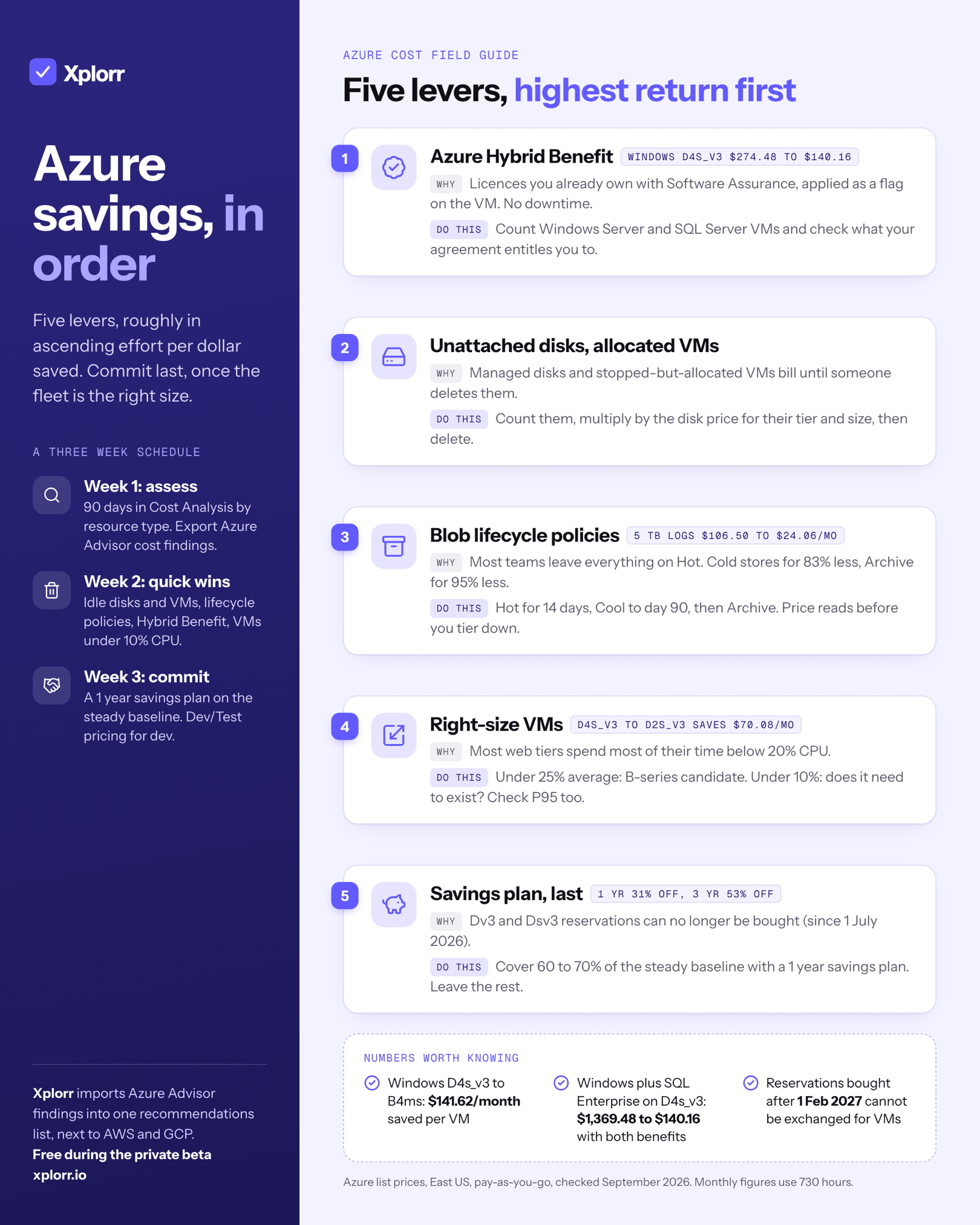
The Azure cost optimization best practices with the highest return, in order: apply Azure Hybrid Benefit to every Windows and SQL Server VM you already hold licences for, delete unattached managed disks, move cold blobs off the Hot tier with a lifecycle policy, right-size VMs against real CPU data, and only then commit to a savings plan on what is left.
Azure bills grow quietly. You deploy a handful of D-series VMs for a web tier, size a SQL Managed Instance generously “for safety”, and leave storage on Hot because nobody wants to be the person who broke prod by moving data to the wrong tier. Six months later you are paying for a lot of headroom nobody uses, and no single line item looks obviously wrong. Every price below is East US list, checked September 2026.
Which Azure VM size should a web tier run on?
The most common over-provisioning mistake on Azure is running web application servers on D-series VMs when B-series would handle the workload fine.
D-series VMs like D4s_v3 provide consistent high CPU. B-series VMs accumulate CPU credits during quiet periods and burst when needed. Most web applications (API servers, content delivery backends, admin panels) spend the large majority of their time below 20% CPU, with occasional spikes during deployments or traffic surges.
East US, Linux, pay-as-you-go:
| VM size | vCPUs | RAM | Hourly | Monthly (730 hrs) |
|---|---|---|---|---|
| D4s_v3 | 4 | 16 GB | $0.192 | $140.16 |
| B4ms | 4 | 16 GB | $0.166 | $121.18 |
| D2s_v3 | 2 | 8 GB | $0.096 | $70.08 |
| B2ms | 2 | 8 GB | $0.0832 | $60.74 |
Prices checked September 2026, East US, Linux, pay-as-you-go, from the Azure Retail Prices API.
On Linux, dropping a size beats changing series
Switching a 4-vCPU Linux web server from D4s_v3 to B4ms saves $18.98/month per VM. Across 10 web servers that is $189.80/month, or $2,277.60/year. Real money, but modest.
Dropping a size is the bigger Linux lever. D4s_v3 to D2s_v3 saves $70.08/month per VM, or $700.80/month across ten. If your CPU and memory data says 2 vCPUs and 8 GB are enough, that beats the series change by nearly four to one.
One note on generations: Microsoft now lists the original Bv1 series (B4ms, B2ms) as previous generation. B4s_v2 is the current equivalent and costs the same $0.166/hr on Linux in East US, so there is no reason to deploy new Bv1 instances.
On Windows, the B-series case is much stronger
The Windows licence uplift is charged per core on D-series but is almost nominal on B-series. That makes the same swap worth far more:
| VM size | Windows hourly | Windows monthly |
|---|---|---|
| D4s_v3 | $0.376 | $274.48 |
| B4ms | $0.182 | $132.86 |
Prices checked September 2026, East US, Windows, pay-as-you-go.
D4s_v3 to B4ms on Windows saves $141.62/month per VM, and $1,416.20/month across ten. That is the version of this advice worth acting on urgently. It also means any published D4s_v3 figure near $280/month is Windows pricing, not general pricing, and should not be used as a Linux baseline.
How do you find right-sizing candidates?
Pull 30 days of CPU per VM and sort by average:
# Pull average CPU for all VMs over last 30 days using Azure CLI
az monitor metrics list \
  --resource "/subscriptions/{sub-id}/resourceGroups/{rg}/providers/Microsoft.Compute/virtualMachines/{vm-name}" \
  --metric "Percentage CPU" \
  --interval PT1H \
  --aggregation Average \
  --start-time 2026-02-18T00:00:00Z \
  --end-time 2026-03-18T00:00:00Z
Any VM averaging below 25% CPU with infrequent bursts is a B-series candidate. Any VM averaging below 10% is a “does this even need to exist?” candidate. Xplorr imports these Azure Advisor findings into its recommendations list, next to the AWS and GCP ones.
Check P95, not just the average. B-series VMs bank credits at a fixed rate and cap what they can hold. A B4ms has a base CPU performance of 22.5%, banks 54 credits per hour and holds at most 1,296. A sustained multi-hour batch job or a long spell of heavy API load exhausts the bank and throttles you back to baseline. Average CPU will not warn you about that; the 95th percentile will.
Is your SQL Managed Instance oversized?
SQL Managed Instance is one of the most over-provisioned services on Azure. Teams pick General Purpose 8-vCore because the migration guide suggested it, then never revisit the decision. Many of those workloads run comfortably on 4 vCores.
General Purpose Gen5 compute bills at $0.152218 per vCore-hour in East US, so the arithmetic is direct:
| Configuration | Compute monthly (730 hrs) |
|---|---|
| General Purpose Gen5, 8 vCore | $888.95 |
| General Purpose Gen5, 4 vCore | $444.48 |
| Saving | $444.48/month |
Prices checked September 2026, East US, pay-as-you-go compute. Reserved storage and backup storage bill separately.
What breaks when you halve the vCores?
Four documented limits move with vCore count, and two of them catch people out.
- Max memory is 5.1 GB per vCore. You go from 40.8 GB to 20.4 GB.
- Max instance storage drops from 8 TB to 2 TB on Gen5 General Purpose. This is the one that blocks the downsize outright if your instance is already over 2 TB.
- Log write throughput is 4.5 MiB/s per vCore, so 36 MiB/s becomes 18 MiB/s.
- Data IOPS and throughput do not scale with vCores at all. In General Purpose they scale with file size, from 500 IOPS and 100 MiB/s on a small file up to 7,500 IOPS and 250 MiB/s past 1 TiB.
Check average CPU over 30 days first. Under 40% and 4 vCores is likely fine, provided the storage ceiling clears. If your workload is bursty with occasional heavy queries, consider Business Critical at a lower vCore count instead: it uses local SSD, has unlimited throughput and 4,000 IOPS per vCore, so queries sometimes complete fast enough that fewer vCores suffice.
Which blob storage tier should data be on?
Azure Blob pricing varies sharply by access tier, and most organizations leave everything on Hot because changing tiers feels risky.
East US, LRS, general purpose v2, flat namespace:
| Tier | Storage $/GB/month | Read $/10K ops | Write $/10K ops |
|---|---|---|---|
| Hot | $0.0208 | $0.004 | $0.05 |
| Cool | $0.0152 | $0.01 | $0.10 |
| Cold | $0.0036 | $0.10 | $0.18 |
| Archive | $0.00099 | $5.00 | $0.10 |
Prices checked September 2026, East US, LRS, first 50 TB tier. Cool adds $0.01/GB data retrieval, Cold $0.03/GB and Archive $0.02/GB.
The storage saving grows steeply as you go down and the operation cost grows steeply with it. Cool is 27% cheaper than Hot to store, Cold 83% cheaper and Archive 95% cheaper. But Cool reads cost 2.5x more than Hot, and Archive reads are 1,250x more expensive. Cold is the tier most teams have never heard of and is often the right answer for data read a few times a year.
The decision framework:
- Accessed multiple times a month → Hot
- Accessed less than monthly, needs to be available within seconds → Cool
- Accessed a few times a year → Cold
- Compliance and audit data accessed less than once a year → Archive
How much does a blob lifecycle policy save?
Log files are the standard case. Most teams write application logs to Blob Storage on Hot, query them for troubleshooting within the first week, and never touch them again. A lifecycle policy handles it automatically:
{
  "rules": [
    {
      "name": "log-tiering",
      "type": "Lifecycle",
      "definition": {
        "filters": {
          "blobTypes": ["blockBlob"],
          "prefixMatch": ["logs/"]
        },
        "actions": {
          "baseBlob": {
            "tierToCool": { "daysAfterModificationGreaterThan": 14 },
            "tierToArchive": { "daysAfterModificationGreaterThan": 90 },
            "delete": { "daysAfterModificationGreaterThan": 365 }
          }
        }
      }
    }
  ]
}
Price it for 5 TB (5,120 GB) of logs on a 365-day retention. On Hot alone that is 5,120 x $0.0208 = $106.50/month. Under the policy above, at steady state 14/365 of the data sits on Hot, 76/365 on Cool and 275/365 on Archive:
Hot:     5,120 x 0.038 x $0.0208  =  $4.05
Cool:    5,120 x 0.208 x $0.0152  = $16.19
Archive: 5,120 x 0.753 x $0.00099 =  $3.82
Total:                              $24.06/month
That is $82.44/month saved, or $989/year, on one storage account, for a JSON policy you write once. Add retrieval costs if you actually read the archived data, which by construction you rarely do.
What is Azure Hybrid Benefit worth?
Azure Hybrid Benefit lets you apply Windows Server or SQL Server licences you already own (with Software Assurance) against Azure VM costs. It is the most under-used cost lever on Azure, because it needs coordination between engineering and procurement rather than any technical work.
On a D4s_v3 in East US:
| Licence | Without AHB | With AHB | Monthly saving |
|---|---|---|---|
| Windows Server on the VM | $274.48 | $140.16 | $134.32 |
| SQL Server Enterprise, 1–4 vCPU VM | $1,095.00 | $0.00 | $1,095.00 |
| SQL Server Standard, 1–4 vCPU VM | $292.00 | $0.00 | $292.00 |
Prices checked September 2026, East US. SQL Server licence meters are global and region-independent. With AHB, Azure publishes the licence meter at $0.00.
Stacked, a D4s_v3 running Windows Server and SQL Server Enterprise costs $1,369.48/month at list and $140.16/month with both benefits applied. That is a 90% reduction from a flag on the VM, with no downtime and no resizing.
How do you enable Azure Hybrid Benefit?
# Enable Azure Hybrid Benefit on an existing VM
az vm update \
  --resource-group myResourceGroup \
  --name myVM \
  --set licenseType=Windows_Server

# For SQL Server VMs
az sql vm update \
  --resource-group myResourceGroup \
  --name mySqlVM \
  --license-type AHUB
Track your licence assignments, because over-assigning breaches the terms. The entitlement rule is that each 2-processor licence, or each set of 16 core licences, covers two instances of up to 8 cores, or one instance of up to 16 cores. Two details people miss: there is a minimum of 8 core licences per VM, so a 4-core VM still consumes 8, and VMs above 8 cores need licences matching their core count. SQL Server on VMs has its own minimum of 4 core licences.
Check Cost Management + Billing → Azure Hybrid Benefit in the portal to compare what you are using against what you are entitled to.
Can you still buy an Azure reservation for D-series v3?
No, and this is the change most guides have not caught up with. Since 1 July 2026, Azure has discontinued new purchases and renewals of both 1-year and 3-year reserved instances for the Dv3, Dsv3, Ev3 and Esv3 series, along with 1-year reservations for several other legacy families. Existing reservations run to the end of their term, but you cannot buy a new D4s_v3 reservation at any price.
The commitment product that does apply to D4s_v3 is the Azure savings plan for compute, which commits you to an hourly spend rather than a specific SKU:
| Commitment | Effective hourly | Monthly | Discount vs pay-as-you-go |
|---|---|---|---|
| Pay-as-you-go | $0.192 | $140.16 | n/a |
| 1-year savings plan | $0.13248 | $96.71 | 31% |
| 3-year savings plan | $0.09024 | $65.88 | 53% |
Prices checked September 2026, East US, Linux, D4s_v3.
Reserved instances remain purchasable for current generations (Dv4, Dv5, Dv6 and their variants), so the practical choice is: move to a current generation and reserve it, or stay on v3 and buy a savings plan.
How flexible is an Azure commitment, really?
More flexible than AWS today, less flexible from next year.
You can currently exchange a reservation for a different VM size, region or eligible service at any time, with the remaining value applied as credit. AWS offers nothing equivalent: once you buy a Standard Reserved Instance you are locked in or selling on the marketplace. But from 1 February 2027, reservations purchased after that date will not be exchangeable where the service is savings-plan-eligible, which covers VMs, App Service and SQL Database. Reservations bought before that date get one final exchange.
Cancellation is unchanged. You can cancel for a prorated refund, and Azure caps total cancelled commitment at $50,000 per rolling 12-month window per billing profile. Refunds arising from an exchange do not count against that cap.
If you are unsure about committing: start with a 1-year savings plan covering 60–70% of your consistent baseline and leave the rest on pay-as-you-go. After a year of data you will know whether the 3-year term is safe.
What order should you work through this?
You do not need an estimate from anyone. Every change here reduces to arithmetic over published Azure list prices and a count of resources you already have. Work through them in this order, which is roughly ascending effort per unit of saving:
- Azure Hybrid Benefit. Count your Windows Server and SQL Server VMs and check what your agreement already entitles you to. Free, instant, reversible, and the numbers above show it is often the largest single item. This is the step teams most often skip.
- Unattached managed disks and stopped-but-allocated VMs. Count them and multiply by the managed disk price for their tier and size. Costs nothing to fix and the money is unconditional.
- Storage lifecycle policies. Take the GB on Hot that has not been read in 30 days and apply the Cool, Cold and Archive rates above.
- VM right-sizing. Slower, because it needs a maintenance window per VM and real utilization data, but it applies to the largest line item on most Azure bills.
- Savings plan on the steady-state baseline. Last, because you want the fleet right-sized before you commit to a year of it. Committing on an oversized VM locks in the wrong size.
A three-week schedule
Week 1, assessment. Open Azure Cost Management → Cost Analysis, set the range to 90 days and group by Resource Type to find your top 5 cost drivers. Then open Azure Advisor → Cost and export its recommendations:
az advisor recommendation list \
  --category Cost \
  --output table
Cross-reference Advisor against your own metrics. A VM averaging 5% CPU might be a build server that spikes to 100% for 20 minutes during deployments.
Week 2, quick wins. Delete idle resources: unattached disks, stopped VMs still incurring disk charges, lingering resources in empty resource groups. Apply storage lifecycle policies to log containers and backup blobs. Enable Hybrid Benefit on every eligible VM. Resize the VMs averaging under 10% CPU.
Week 3, commitments and architecture. Pull your consistent baseline compute from Cost Management, buy a 1-year savings plan against it, and evaluate dev/test environments for Azure Dev/Test pricing, a separate subscription type with reduced rates and no Windows licence charges.
What do Azure Advisor and Cost Management miss?
They don’t understand your application architecture, and that is where the remaining money sits. For a side by side of what the native tools do well and where they stop, see Xplorr vs Azure Cost Management.
Advisor will tell you a VM is under-utilized but not that it is the passive half of an active-passive HA pair where low utilization is the design. It won’t flag that three SQL Managed Instances could be consolidated with elastic pools. It won’t suggest that a batch workload on D-series VMs could move to Azure Batch on Spot VMs, which Microsoft publishes at up to 90% off and which currently price a D4s_v3 in East US around 80% below pay-as-you-go. Note that B-series does not support Spot at all, so the two pieces of advice in this guide do not combine.
This is where multi-cloud cost platforms like Xplorr add value, layering application context, cross-cloud benchmarking and anomaly detection on top of raw billing data. If you’re running Azure plus AWS or GCP, a single view that correlates cost with utilization across all of them saves significant time.
But the fundamentals in this guide work regardless of tooling. Apply Hybrid Benefit, clean up waste, tier your storage, right-size, then commit. Those five actions cover most of the recoverable spend in a typical Azure environment.
Keep reading
- AWS vs Azure vs GCP Pricing in 2026: Which Cloud Is Cheapest?
- Why Multi-Cloud Cost Visibility Is Broken
- Building a FinOps Practice That Engineers Actually Follow
See how Xplorr helps → Features
Xplorr shows your AWS, Azure and GCP spend in one place, with anomaly detection, budgets and rightsizing recommendations. Get started free.
Written by
Xplorr team
The people who build Xplorr
Written together by the engineers who build Xplorr: the AWS, Azure, GCP and Kubernetes collectors, the console, and the alerting behind them.
About Xplorr