Group spend by how your company is organised, not how it was tagged
Tags describe resources. Teams and business units rarely map onto them cleanly, and shared platform cost maps onto nothing at all. Cost categories let you define a grouping such as team, environment or product line, fill it with ordered rules that assign spend from every provider, and split shared pools across the rest before any of it reaches a report.
Inputs
Where the Teams and Tags numbers come from
Xplorr reads your accounts with read only credentials and never writes to your infrastructure. These are the sources behind this screen.
- Spend from every connected provider
- A category assigns cost from AWS, Azure, GCP and the connected AI sources at once, so one grouping covers the whole bill rather than needing to be rebuilt per cloud.
- Tags, accounts and services as rule conditions
- Rules match on the attributes that already exist on your spend. That is what lets a category work across providers whose tagging conventions never agreed with each other.
- The values and owners you define
- Each category holds the list of values it can assign to, such as your actual team names, optionally with an owner address attached so a figure has somebody it belongs to.
Method
How the Teams and Tags numbers are worked out
No black box. If a figure is an estimate or an apportionment rather than a billed line, the page says so.
Rules run top to bottom and the first match wins
Ordering is the whole mechanism. Specific rules go above broad ones, and the first rule a cost line matches decides where it lands. A first match model means every line has exactly one owner, so category totals sum to the bill rather than double counting.
All conditions inside a rule must be true
Conditions within a single rule combine with and, not or. Breadth comes from adding more rules, which keeps each rule readable and makes the order meaningful.
A category can act as a virtual tag
Marking a category as a virtual tag lets you filter and break down cost by it as though it were a real cloud tag, including for spend that carries no tags at all. This is how untagged cost still gets attributed without anyone retagging infrastructure.
A value can be a shared pool that splits across the others
Shared platform cost goes into a value marked as a pool, and that pool is divided across the remaining values instead of sitting in an unowned bucket. The split can be even, proportional to what each value already spends, or a fixed share, and it is a deliberate setting rather than something applied quietly.
Chargeback markup is set per value
Each value can carry its own markup percentage, which is applied on top of the cost assigned to it. That is what turns an internal showback figure into a rebillable one for teams that pass cost on.
The result is previewed before it is published
A category can be reviewed against real spend before it reaches reports, so a rule ordering mistake is caught while it is still a draft rather than after finance has the number.
In the console
What is on the Teams and Tags screen
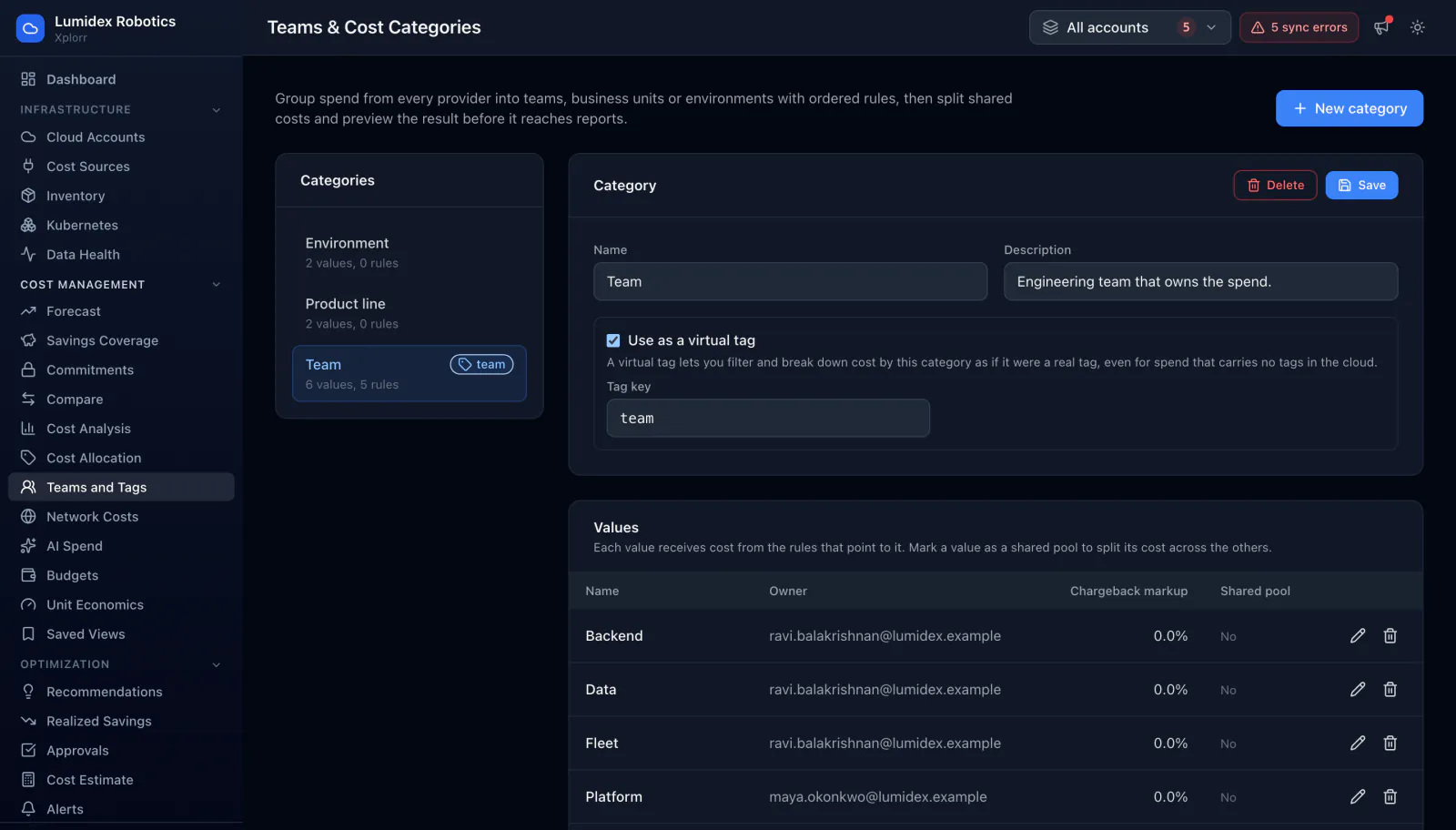
- Every category with how many values and rules it holds
- Which categories are in use as a virtual tag
- A category name and description, and the virtual tag setting
- A values table with name, owner, chargeback markup and shared pool status
- Adding a value with its owner address, markup and pool setting inline
- An ordered rule list, with the reminder that the first match wins
- Save and delete per category, and a preview of the result before it reaches reports
Common questions about Teams and Tags
How is a virtual tag different from a real cloud tag?
What happens to a cost line that matches two rules?
How does a shared pool get split?
Do I need this if I already have good tags?
Background reading
How team level ownership depends on consistent tags, and what to do about the untagged remainder, is in FinOps best practices for engineering teams.
Related features
How this compares
See this on your own accounts
Connect a cloud account with read only credentials and the first sync pulls your last 30 days, so this screen fills with your numbers instead of the demo workspace. Free during beta.