One list of what actually exists across three clouds
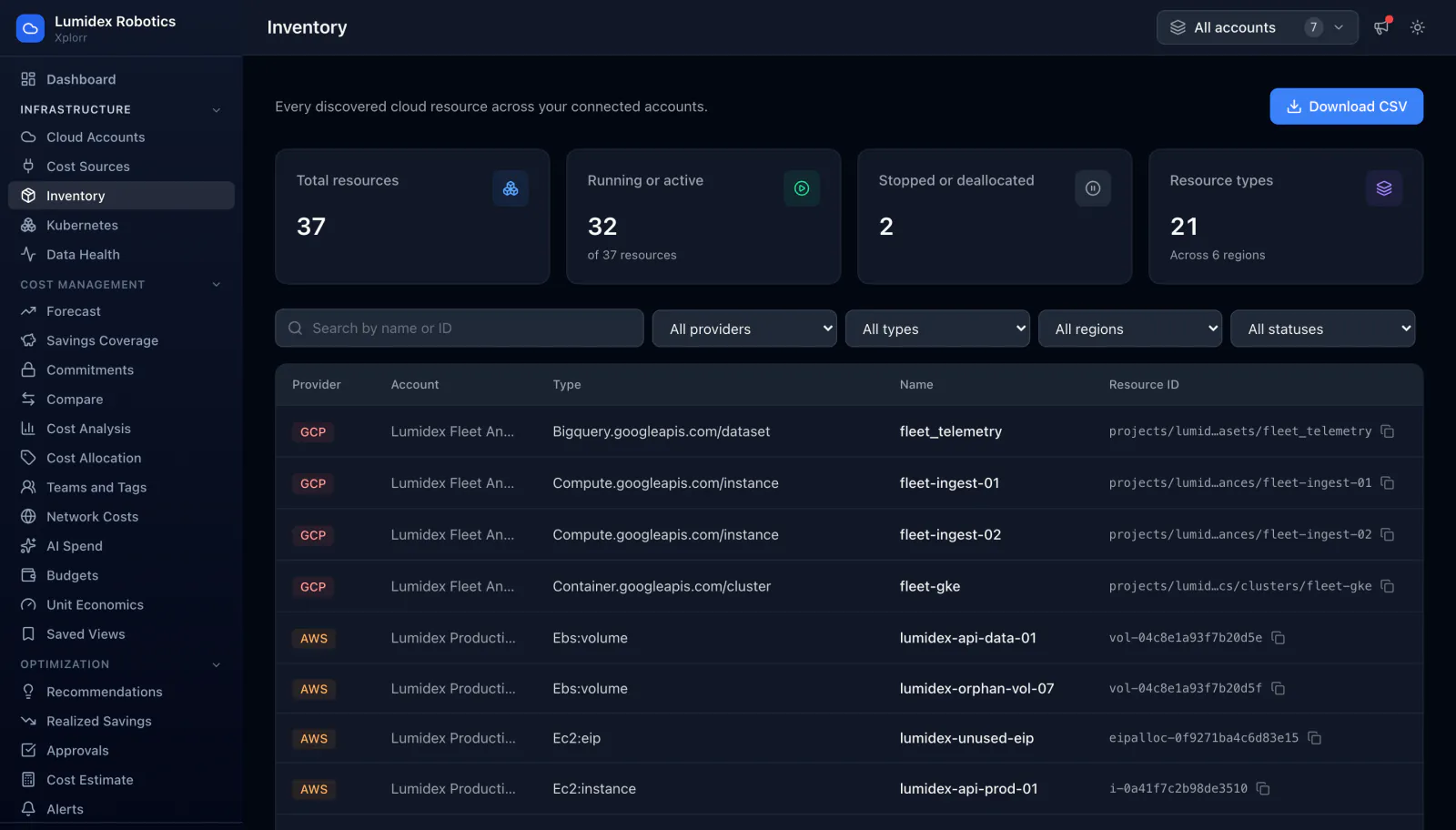
A bill tells you what you were charged for. Inventory tells you what is there. Xplorr discovers resources across every connected AWS, Azure and GCP account, records the provider, account, type, region, status and native resource ID for each one, and keeps that list in step with the billing data it syncs alongside.
Inputs
Where the Resource Inventory numbers come from
Xplorr reads your accounts with read only credentials and never writes to your infrastructure. These are the sources behind this screen.
- Provider resource APIs
- Resources are discovered through each provider own interfaces rather than inferred from billing lines, which is how a resource that costs nothing this month still appears in the list.
- Read only credentials
- Discovery uses the same read only connection as the rest of Xplorr. Nothing is created, modified or deleted in your accounts at any point.
- Resource tags
- Tags are collected with each resource, which is what lets inventory serve as the denominator for tag governance and the evidence behind an allocation figure.
Method
How the Resource Inventory numbers are worked out
No black box. If a figure is an estimate or an apportionment rather than a billed line, the page says so.
Discovery is keyed on the native resource ID
Each row keeps the provider identifier, the EC2 instance ID, the EBS volume ID, the full GCP resource path. That is the identifier you paste into a console or a ticket, so it is stored rather than replaced with a friendly name.
Type is recorded as the provider reports it
Types appear in provider terms, such as an EC2 instance, an EBS volume or a BigQuery dataset, instead of being flattened into a generic category. A normalised label would make two clouds look the same in a way that loses the detail you act on.
Running and stopped are counted separately
A stopped instance and a deallocated virtual machine usually still cost something for the storage attached to them. Counting them apart from running resources is what makes that visible rather than folded into a single total.
Inventory is what makes a resource orphaned
An unattached volume or an unused address is only identifiable by knowing the resource exists and what it is attached to. Inventory supplies that, which is why the orphaned and idle recommendations depend on it.
In the console
What is on the Resource Inventory screen
- Total resources, how many are running or active, and how many are stopped or deallocated
- The number of distinct resource types and how many regions they span
- A table with provider, account, type, name and native resource ID
- Search by resource name or ID
- Filters for provider, resource type, region and status
- A copy control on each resource ID, and a CSV download of the filtered list
Common questions about Resource Inventory
Why do I need an inventory if I already have the bill?
Does Xplorr change anything in my accounts?
Can I get this list out of Xplorr?
How often does it refresh?
Background reading
Orphaned volumes, snapshots and idle instances are where an inventory earns its keep, and AWS cost optimization strategies prices each of them at list rates.
Related features
How this compares
See this on your own accounts
Connect a cloud account with read only credentials and the first sync pulls your last 30 days, so this screen fills with your numbers instead of the demo workspace. Free during beta.