Savings you can check, and a record of what was applied
Most tools produce a list of savings nobody acts on, because each row asks you to trust a number with no working shown and there is no way to tell later whether anything happened. Xplorr puts the evidence on the row and moves each one through a status, so the list is both checkable and finishable.
Inputs
Where the Recommendations numbers come from
Xplorr reads your accounts with read only credentials and never writes to your infrastructure. These are the sources behind this screen.
- Resource inventory
- What exists across the connected accounts, synced alongside billing from the AWS, Azure and GCP resource and asset APIs, which is how an orphaned volume is spotted at all.
- Utilisation data
- How hard each resource is actually working. A rightsizing recommendation cites the utilisation it was based on, such as a peak figure over the observed period.
- A price for the resource
- For the checks Xplorr runs itself on AWS, the monthly figure is priced from the AWS Price List on demand rate for that instance type or volume type, in that region, and falls back to the account's own billed cost for the resource over the last 30 days when no list price is found. Where the provider makes the recommendation, the figure is the provider's own savings projection.
Method
How the Recommendations numbers are worked out
No black box. If a figure is an estimate or an apportionment rather than a billed line, the page says so.
Findings are grouped by category
Idle resources, rightsizing, reserved instances, savings plans and orphaned resources are separate categories, because they carry very different risk. Deleting an unattached volume is not the same decision as resizing production.
Each row states the monthly figure and its evidence
A recommendation shows the saving per month together with the reason, such as utilisation peaking well below the provisioned size. The evidence is what lets an engineer disagree with it.
Savings rate puts the total in proportion
Potential savings are also expressed as a percentage of spend, which is the honest version of the number. A large figure on a much larger bill is a different situation from the same figure on a small one.
Status is tracked to completion
Recommendations move from ready for review through to done, and the page shows how many were applied against how many are waiting. That is what makes realised savings a fact rather than a claim.
Nothing is changed without you
Xplorr holds read only credentials. Applying a recommendation is a decision you take, and on Enterprise it can be routed through an approval before anyone acts on it.
Which checks run depends on the provider
Azure recommendations are Azure Advisor cost advice, mapped onto the Xplorr categories. GCP recommendations come from the Recommender API, covering idle instances, idle disks, machine type changes, idle Cloud SQL instances and commitment usage. On AWS, Savings Plans purchase advice comes from Cost Explorer, and the idle instance and unattached volume checks are ones Xplorr runs itself against EC2 and CloudWatch.
The idle check needs seven days of CloudWatch metrics
An EC2 instance is called idle when its average CPU utilisation over the last seven days is below five percent. An instance launched in the last few days, or one whose metrics CloudWatch will not return, is skipped rather than guessed at. CPU on its own also will not notice an instance that is busy on memory, disk or network and quiet on the processor.
Scanning is bounded, so a resource can sit outside it
The AWS idle scan covers the regions your account has enabled and has recent spend in, rather than every region in the partition, and it runs twice a day. GCP recommendations are read from at most three regions per project, defaulting to us-central1, us-east1 and europe-west1 unless the connection names others. A resource outside the scanned regions produces no recommendation, which is worth knowing before reading an empty category as a clean estate.
In the console
What is on the Recommendations screen
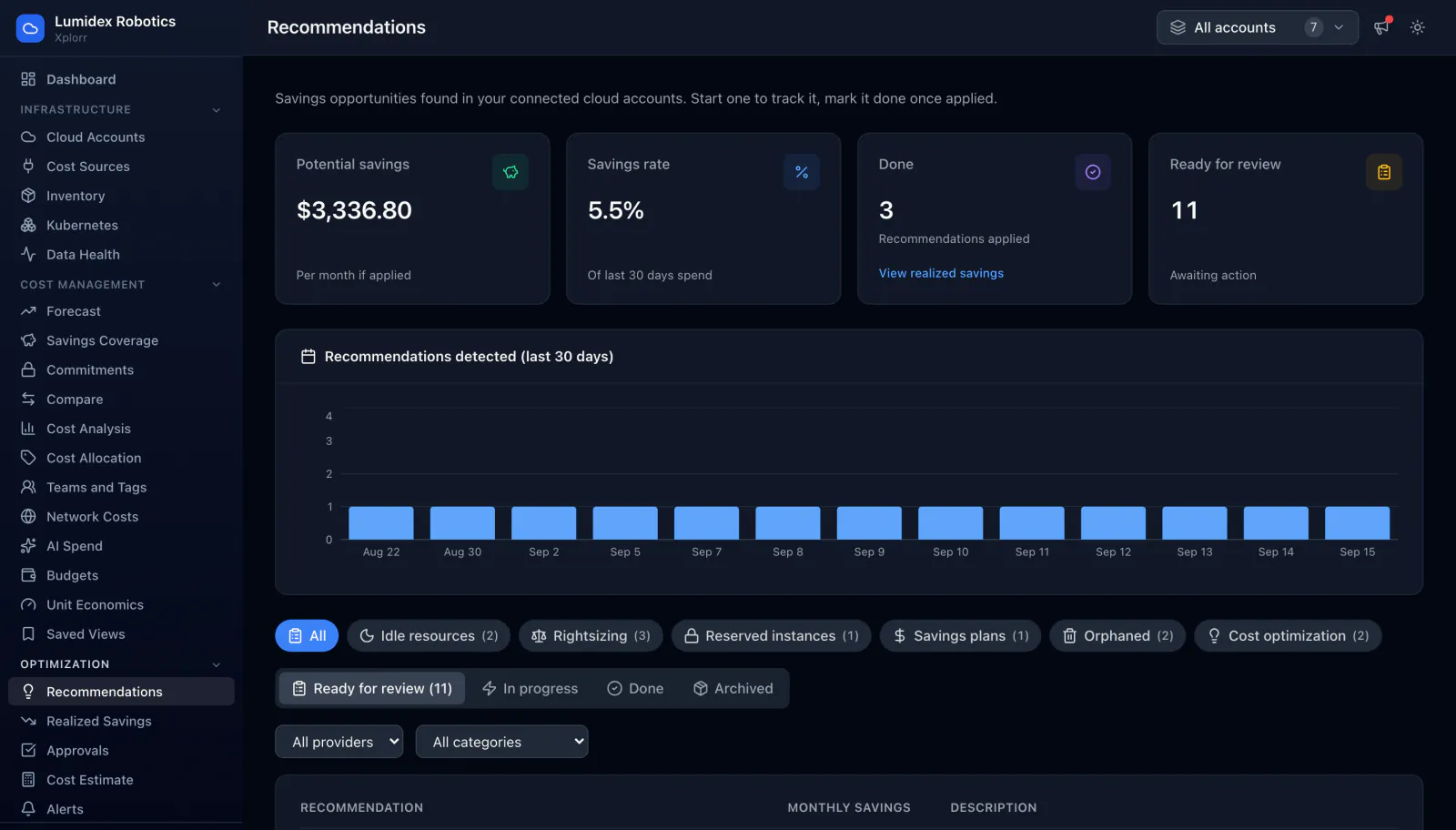
- Total potential monthly savings and the savings rate it represents
- Counts of applied recommendations against those ready for review
- Category filters for idle, rightsizing, reserved instances, savings plans and orphaned resources
- Per recommendation monthly saving with the evidence it was based on
- The affected resource, account and region
- Status on each row, so the list can actually be worked through
Common questions about Recommendations
Will Xplorr change my infrastructure?
How is the monthly saving calculated?
Can risky changes require sign off?
Why did a recommendation disappear from the list?
Why does a recommendation show no saving at all?
Background reading
The findings this screen lists, from idle instances to unattached volumes, are explained one by one in AWS cost optimization strategies.
To work through them in a single week, follow How to cut your AWS bill in one week.
Related features
How this compares
See this on your own accounts
Connect a cloud account with read only credentials and the first sync pulls your last 30 days, so this screen fills with your numbers instead of the demo workspace. Free during beta.