How to Cut Your AWS Bill in One Week: A Practical Checklist
Reduce your AWS bill with EC2 right-sizing, idle resource cleanup, commitment purchases and dev environment scheduling. Five steps, each priced at published list rates.

Xplorr team
The people who build Xplorr
In this post
- Step 1: How Do You Find Right-Sizing Candidates?
- What Should You Look For in the Metrics?
- Step 2: Which Idle Resources Cost the Most?
- Step 3: Reserved Instances or Savings Plans?
- How Much of Your Fleet Should You Commit?
- Step 4: How Much Does Scheduling Dev Environments Save?
- Step 5: Which CloudWatch Metrics Find Waste?
- What Does the One-Week Plan Look Like?
Cut an AWS bill in a week by working five things in order: right-size EC2 against CloudWatch CPU data, delete idle resources, commit the stable baseline to a Savings Plan, schedule non-production environments off outside working hours, and set alarms so the drift does not come back. Each step prices out against published list rates before you change anything.
The waste is almost never in exotic services. It is in over-provisioned instances, forgotten resources, and purchasing decisions nobody revisited.
Step 1: How Do You Find Right-Sizing Candidates?
EC2 right-sizing is consistently the largest single opportunity on most accounts. The typical pattern: an engineer provisions an m5.4xlarge for a workload that peaks at 15% CPU, and nobody revisits the instance type because “it works”.
Open Cost Explorer, filter to EC2 and sort by cost. Then pull 30-day average CPU utilization from CloudWatch for your ten costliest instances. Anything consistently under 30% is a candidate.
| Instance type | On-demand | Monthly at 730 hrs |
|---|---|---|
m5.4xlarge |
$0.768/hr | $560.64 |
m5.2xlarge |
$0.384/hr | $280.32 |
m5.xlarge |
$0.192/hr | $140.16 |
Prices checked September 2026, us-east-1, Linux, on-demand.
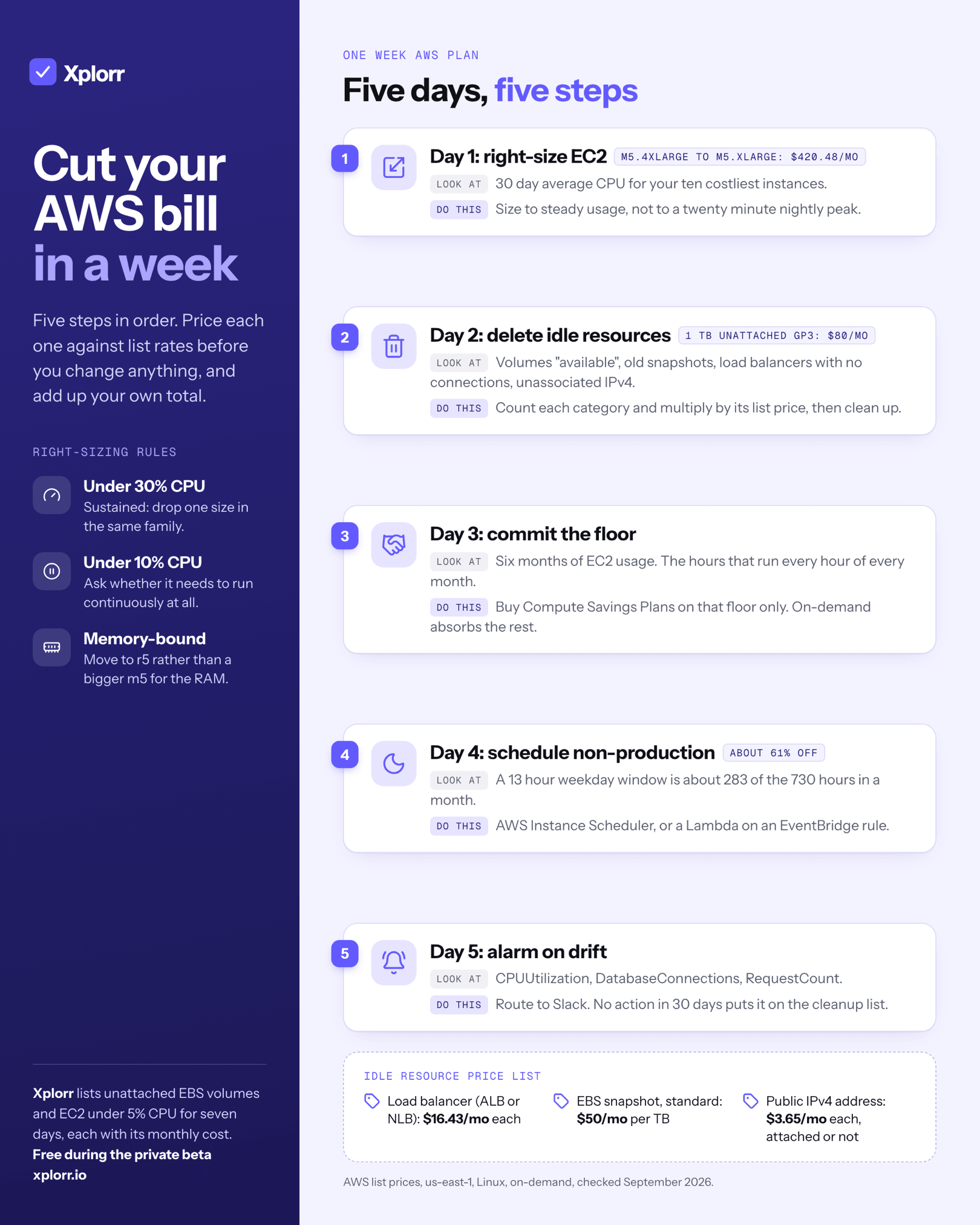
Moving one instance from m5.4xlarge to m5.xlarge is (0.768 - 0.192) x 730 = $420.48/month. Do that arithmetic per candidate and add it up. That total is defensible in a way a percentage is not.
What Should You Look For in the Metrics?
Three rules cover most cases:
- Average CPU below 30% sustained. Drop one size within the same family.
- Average CPU below 10%. Ask whether the workload needs to run continuously at all, not just whether it needs a smaller box.
- Memory-bound with low CPU. Move to the
r5family rather than over-provisioningm5to get the RAM.
The trap is sizing to peak. A workload that hits 90% CPU for twenty minutes during a nightly batch and sits at 8% the rest of the day does not need an instance sized for those twenty minutes. It needs either a smaller instance that tolerates the burst, or the batch moved somewhere it can scale independently.
Step 2: Which Idle Resources Cost the Most?
Every account accumulates idle resources. Engineers spin things up to test something, forget to clean up, and the meter keeps running. Xplorr’s recommendations list unattached EBS volumes and EC2 instances that averaged under 5% CPU for seven days, each with its monthly cost.
| Idle resource | List price | Monthly cost |
|---|---|---|
| Unattached gp3 volume | $0.08/GB-month | $80.00 per TB |
| EBS snapshot, standard tier | $0.05/GB-month | $50.00 per TB |
| Application or Network Load Balancer | $0.0225/hr | $16.43 each |
| Classic Load Balancer | $0.025/hr | $18.25 each |
| Public IPv4 address | $0.005/hr | $3.65 each |
Prices checked September 2026, us-east-1.
Where to look: EC2 → Volumes filtered to “Available”, EC2 → Snapshots sorted by creation date, EC2 → Load Balancers with zero active connections over 30 days, and EC2 → Elastic IPs filtered to unassociated. Note that AWS bills every public IPv4 address, attached or not.
Count each category and multiply. Older accounts carry more debris, so this total tracks account age more than it tracks spend.
Step 3: Reserved Instances or Savings Plans?
If EC2 spend has been consistent for six months or more, on-demand pricing is leaving money on the table. Xplorr’s savings coverage view shows how much of that spend already sits under a commitment.
- AWS publishes up to 72% off on-demand for Reserved Instances and up to 66% for Compute Savings Plans, both at the 3-year All Upfront end
- One-year terms discount less than three-year, and No Upfront less than All Upfront
- The rate you actually get depends on instance family, region and term, so read it off the pricing page for your own configuration rather than off a headline
Compute Savings Plans are the most flexible. They apply automatically to any EC2 instance regardless of family, size, region or OS, and also cover Lambda and Fargate. EC2 Instance Savings Plans discount deeper but lock you to one family in one region. Reserved Instances discount deepest and flex least.
Prices checked September 2026, us-east-1.
How Much of Your Fleet Should You Commit?
You do not need to cover 100% of capacity, and covering it is usually a mistake.
Pull the last six months of EC2 usage and find the floor: the instance hours that run every hour of every month regardless of traffic. That floor is your baseline. Commit to it and let on-demand absorb everything above.
Coverage above the floor is a bet that your infrastructure will not change. Over a one-year term that bet is usually fine. Over three years, on a specific instance family, it frequently is not, and an unused commitment is worse than paying on-demand because you pay for both.
The saving is your chosen discount rate applied only to the committed portion. Multiply, do not assume the headline percentage applies to the whole bill.
Step 4: How Much Does Scheduling Dev Environments Save?
Embarrassingly obvious and still rare: dev and staging do not need to run at 3am on a Saturday.
There are 730 hours in an average month. A 13-hour weekday window (7am to 8pm across roughly 21.75 weekdays) is about 283 hours, so you pay for 39% of the clock and save 61%. A tighter 40-hour week is 76% off.
On a non-production compute line of $2,000/month, the 13-hour schedule returns about $1,220.
How to implement: AWS Instance Scheduler is the standard route, defining schedules in DynamoDB and tagging instances accordingly. A Lambda on an EventBridge rule is fine for simpler setups. For databases, Aurora Serverless v2 auto-pauses when idle, and non-serverless RDS instances can be stopped for up to seven days at a time.
Step 5: Which CloudWatch Metrics Find Waste?
CloudWatch tells you what is actually happening, as opposed to what you provisioned for. Three metrics cover most of it:
- CPUUtilization for EC2, RDS and ElastiCache. Consistently under 20% means over-provisioned.
- DatabaseConnections for RDS. Using 5 of 500 provisioned connections means you sized for a load that never arrived.
- RequestCount for load balancers. Zero for 30 days means orphaned.
Set alarms on these with a threshold that means “probably idle” and route them to Slack. When an alarm fires and nobody acts within 30 days, that resource goes on the cleanup list. This is the step that keeps the other four from having to be repeated in six months.
What Does the One-Week Plan Look Like?
- Day 1: pull CloudWatch CPU for all EC2 instances, identify right-sizing candidates, price each one.
- Day 2: audit idle resources (unattached volumes, old snapshots, idle load balancers, unassociated IPv4).
- Day 3: analyze six months of EC2 usage, find the floor, buy Compute Savings Plans against it.
- Day 4: implement scheduling for dev and staging.
- Day 5: set CloudWatch alarms on the idle-resource metrics to catch future drift.
Steps 1 and 3 usually dominate, because EC2 is usually the largest line item and both act directly on it. Add up the per-item numbers as you go. The total is whatever your own account produces.
The hard part is not finding the savings. It is making time to act on them, which is why continuous tooling beats a one-off audit. Xplorr’s AWS, Azure, and GCP integrations pull cost and utilization data daily, so right-sizing candidates and idle resources surface without a manual sweep. See Xplorr pricing for what each plan includes, starting with a Free plan for 1 cloud account.
Xplorr shows your AWS, Azure and GCP spend in one place, with anomaly detection, budgets and rightsizing recommendations. Get started free.
Keep reading
- AWS Cost Optimization Strategies That Actually Work
- Hidden Cloud Costs You’re Probably Missing Right Now
- 5 Signs Your Cloud Bill Is About to Spike
See how Xplorr helps → Features
Written by
Xplorr team
The people who build Xplorr
Written together by the engineers who build Xplorr: the AWS, Azure, GCP and Kubernetes collectors, the console, and the alerting behind them.
About Xplorr