How to Track AWS Credits Before They Run Out
How to track AWS credits: expiry per grant, burn rate, the run out date formula, what credits do not cover, and when to alert, plus Azure and Google Cloud.

Xplorr team
The people who build Xplorr

In this post
Startups get cloud credits: AWS Activate, a promotional grant from an account manager, an Azure sponsorship, Google Cloud startup credits. Almost nobody tracks when they run out. Then one month the invoice is real, and nobody budgeted for it.
Tracking credits is not hard. It takes five numbers per grant and a date on a calendar. This guide uses AWS for the examples, with notes for Azure and Google Cloud at the end.
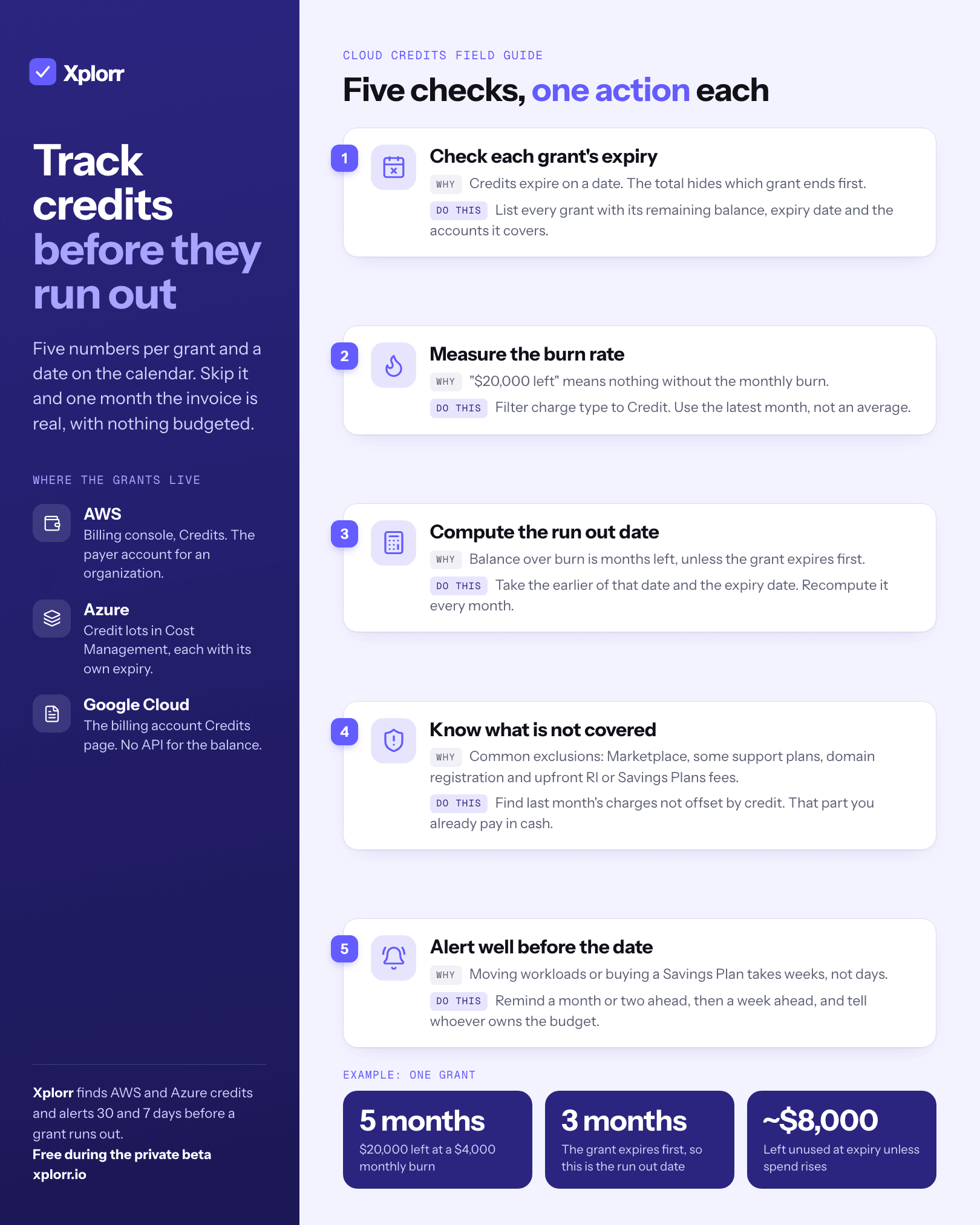
Step 1: Check each grant’s expiry, not just the balance
Credits expire on a date, not when you stop needing them. An account can hold several grants, each with its own expiry, and the console total hides which one ends first.
In the AWS Billing and Cost Management console, open Credits. Each credit shows the amount used, the amount remaining, the expiry date and the services it applies to. Write down every active grant with three fields: remaining balance, expiry date, and which accounts it covers. If you use AWS Organizations, credits are managed from the management (payer) account and can be shared across member accounts, so check there rather than in each member account.
Step 2: Measure burn rate, not the balance
“$20,000 left” means nothing without the monthly burn. To get it, open Cost Explorer, filter Charge type to Credit, and look at the last three full months. The credit applied each month is your burn. Use the most recent month, or the trailing 30 days, rather than a long average: a growing startup’s spend rises month over month, and an average from six months ago will overstate how long the credits last.
Step 3: Compute the run out date
The formula is simple:
months left   = remaining balance / monthly burn
run out date  = the earlier of (today + months left) and the expiry date
As an example: $20,000 remaining at a $4,000 monthly burn is 5 months. If the grant expires in 3 months, the expiry date is your real run out date, and about $8,000 of credit will go unused unless spend rises to use it. Both outcomes matter. Running out early means an unplanned bill. Expiring with a balance means value you were given and did not use.
With several grants on one account, they are usually consumed in expiry order, soonest first, so compute each grant’s date in that order. Recompute on the first of every month, because the burn changes.
Step 4: Know what credits do not cover
Credits rarely cover everything. Common exclusions on AWS promotional credits include AWS Marketplace purchases, some support plans, domain registration and upfront Reserved Instance or Savings Plans fees. Each grant’s terms list the eligible services, and the Credits page shows which services a credit applies to.
The practical check: in Cost Explorer, look at charges that were not offset by credit last month. That is the part of the bill you are already paying in cash, and it is the part that will keep growing after the credits end.
Step 5: Alert well before the date
An alert six days out gives you time to panic, not to plan. Moving workloads, buying a Savings Plan, applying for a follow on program or changing a budget all take weeks. Put a first reminder a month or two ahead of the run out date, and a second one a week ahead, and share the date with whoever owns the budget.
AWS Budgets can help here: a cost budget that excludes credits shows what the bill would be without them, and it is worth watching well before the credits end. See cloud cost optimization for startups for what to optimize at each stage once the credits are gone.
What about Azure and Google Cloud?
- Azure: sponsorship, Enterprise Agreement and Microsoft Customer Agreement credit shows as credit lots in Cost Management, each with an original amount, remaining balance and expiry. The same formula applies per lot.
- Google Cloud: promotional credits appear on the billing account’s Credits page with a remaining value and expiry date. Google has no API for the remaining balance, so most teams track these by hand.
How Xplorr tracks credits
Xplorr imports AWS credits daily with billing:GetCredits (from the management account it covers the whole organization) and Azure EA and MCA credit lots through the Consumption API. Google Cloud grants, or anything else, can be entered by hand. For each grant it shows the remaining balance, the trailing 30 day burn rate, the projected run out date and how much would be left unused at expiry, with grants drawn down in expiry order.
Credit alerts go by email to admins and to Slack 30 days and 7 days before a grant’s projected run out date, and 30 and 7 days before expiry when the projection shows balance left unused. The same console has budgets (monthly, quarterly or yearly) for the bill that comes after. FinOps for startups shows how credits, budgets and anomaly alerts fit together, and the credits guide in the docs covers setup. Xplorr is free during the private beta.
Keep reading
- Cloud Cost Optimization for Startups: A Practical Guide by Stage
- AWS Reserved Instances vs Savings Plans: A Decision Framework
- How to Read Your AWS Bill: Five Places Spend Hides Outside EC2
See how Xplorr helps → Features
Written by
Xplorr team
The people who build Xplorr
Written together by the engineers who build Xplorr: the AWS, Azure, GCP and Kubernetes collectors, the console, and the alerting behind them.
About Xplorr