Cloud Cost Monitoring and Alerting: A Practical Setup Guide for AWS, Azure, and GCP
Cloud cost monitoring and alerting across AWS, Azure and GCP, with real CLI commands, anomaly detection strategies, budget enforcement and less alert fatigue.

Xplorr team
The people who build Xplorr
In this post
- Why Does Most Cost Alerting Fail?
- How Do You Set Up AWS Budget Alerts?
- Which Budget Thresholds Should You Use?
- How Do You Set Up Azure Budget Alerts?
- How Do You Set Up GCP Budget Alerts?
- What Does Threshold-Based Anomaly Detection Catch?
- Why Is a Rolling Average Better?
- How Do You Enable AWS Cost Anomaly Detection?
- What Triggers False Positives?
- How Do You Enforce a Budget, Not Just Alert on It?
- How Do You Restrict VM Sizes on Azure?
- How Do You Avoid Alert Fatigue?
- Why Does a Weekly Cost Digest Work?
- What Does the Full Stack Look Like?
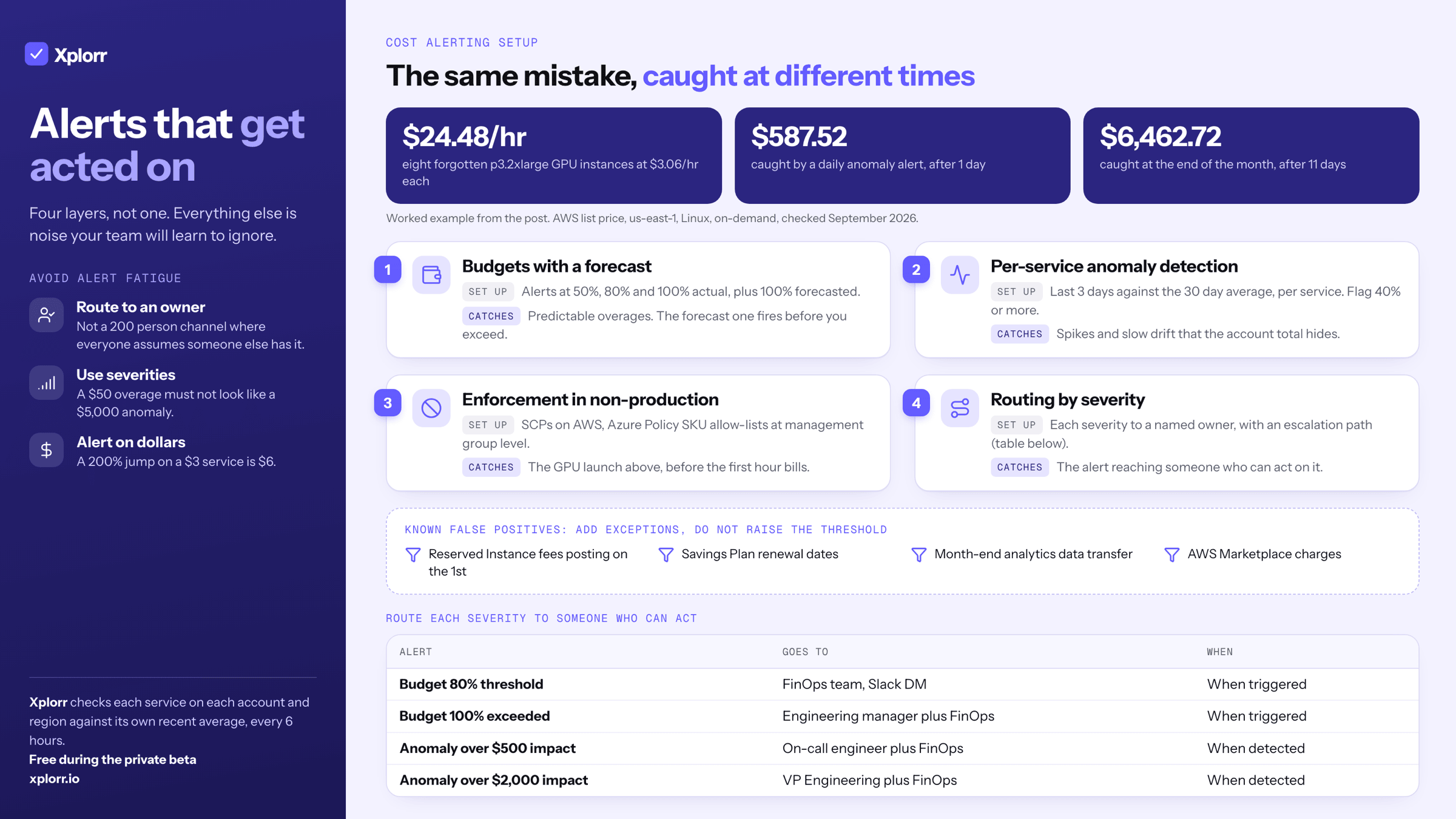
Effective cloud cost alerting needs four pieces: budgets with graduated thresholds including a forecasted one, per-service anomaly detection against a rolling average, enforcement that blocks expensive resource types in non-production, and routing that sends each severity to someone who can act. Everything else is noise you will teach your team to ignore.
Here is the scenario all of it exists for. Someone launches eight p3.2xlarge GPU instances for a one-off ML experiment and forgets to terminate them. At the $3.06/hr on-demand list price, that is 8 x 3.06 = $24.48 an hour:
Caught by a daily anomaly alert (1 day):   $587.52
Caught at the end of the month (11 days):  $6,462.72
Prices checked September 2026, us-east-1, Linux, on-demand.
Same mistake, same instances, same price list. The only variable is how long it runs before someone finds out.
Why Does Most Cost Alerting Fail?
Most teams who say they “already have alerting” actually have one of these three things:
- A single budget alert at 80% of a number someone picked a year ago. The threshold is either too high to ever fire or so low it fires every month and gets filtered.
- Alerts landing in a shared inbox or channel nobody owns. The alert fires, gets buried under 200 other notifications, and no one acts.
- Absolute thresholds with no anomaly detection. If the bill is $50,000/month and growing 10% month over month, a $55,000 threshold fires every month. A sudden jump from $50,000 to $58,000 in one week, which is the event you actually need, slips underneath it.
The fix is not a bigger threshold. It is having all four layers (budgets, anomaly detection, enforcement, routing) rather than one of them.
How Do You Set Up AWS Budget Alerts?
AWS Budgets is the built-in tool. Not fancy, but it works. Start with an SNS topic so alerts have somewhere to go.
aws sns create-topic --name cloud-cost-alerts \
  --region us-east-1

# Subscribe your team's Slack webhook or email
aws sns subscribe \
  --topic-arn arn:aws:sns:us-east-1:123456789012:cloud-cost-alerts \
  --protocol email \
  --notification-endpoint [email protected]
Then create a monthly budget with graduated alerts:
aws budgets create-budget \
  --account-id 123456789012 \
  --budget '{
    "BudgetName": "monthly-total-spend",
    "BudgetLimit": { "Amount": "15000", "Unit": "USD" },
    "TimeUnit": "MONTHLY",
    "BudgetType": "COST",
    "CostFilters": {},
    "CostTypes": {
      "IncludeTax": true,
      "IncludeSubscription": true,
      "UseBlended": false,
      "IncludeRefund": false,
      "IncludeCredit": false
    }
  }' \
  --notifications-with-subscribers '[
    {
      "Notification": {
        "NotificationType": "ACTUAL",
        "ComparisonOperator": "GREATER_THAN",
        "Threshold": 50,
        "ThresholdType": "PERCENTAGE"
      },
      "Subscribers": [{
        "SubscriptionType": "SNS",
        "Address": "arn:aws:sns:us-east-1:123456789012:cloud-cost-alerts"
      }]
    },
    {
      "Notification": {
        "NotificationType": "ACTUAL",
        "ComparisonOperator": "GREATER_THAN",
        "Threshold": 80,
        "ThresholdType": "PERCENTAGE"
      },
      "Subscribers": [{
        "SubscriptionType": "SNS",
        "Address": "arn:aws:sns:us-east-1:123456789012:cloud-cost-alerts"
      }]
    },
    {
      "Notification": {
        "NotificationType": "ACTUAL",
        "ComparisonOperator": "GREATER_THAN",
        "Threshold": 100,
        "ThresholdType": "PERCENTAGE"
      },
      "Subscribers": [{
        "SubscriptionType": "SNS",
        "Address": "arn:aws:sns:us-east-1:123456789012:cloud-cost-alerts"
      }]
    },
    {
      "Notification": {
        "NotificationType": "FORECASTED",
        "ComparisonOperator": "GREATER_THAN",
        "Threshold": 100,
        "ThresholdType": "PERCENTAGE"
      },
      "Subscribers": [{
        "SubscriptionType": "SNS",
        "Address": "arn:aws:sns:us-east-1:123456789012:cloud-cost-alerts"
      }]
    }
  ]'
Which Budget Thresholds Should You Use?
The four alert types above are deliberate, and each one answers a different question.
| Alert | When it fires | Purpose |
|---|---|---|
| 50% actual | Mid-month | Sanity check: are we tracking normally? |
| 80% actual | Around day 24 normally | Warning: likely to exceed if anything unusual happens |
| 100% actual | Budget exceeded | Action required: investigate what pushed it over |
| 100% forecasted | When AWS projects an overage | Early warning: fires before you actually exceed |
The forecasted alert is the most valuable of the four. AWS projects month-end from your spending trend, so if you are on pace to exceed by day 15 you get two weeks to act rather than a post-mortem.
Add per-service budgets for your top cost drivers on top of the account-level one. Three is usually enough, and it is usually EC2, RDS, and either S3 or data transfer.
aws budgets create-budget \
  --account-id 123456789012 \
  --budget '{
    "BudgetName": "ec2-monthly-budget",
    "BudgetLimit": { "Amount": "8000", "Unit": "USD" },
    "TimeUnit": "MONTHLY",
    "BudgetType": "COST",
    "CostFilters": {
      "Service": ["Amazon Elastic Compute Cloud - Compute"]
    }
  }' \
  --notifications-with-subscribers '[
    {
      "Notification": {
        "NotificationType": "ACTUAL",
        "ComparisonOperator": "GREATER_THAN",
        "Threshold": 80,
        "ThresholdType": "PERCENTAGE"
      },
      "Subscribers": [{
        "SubscriptionType": "SNS",
        "Address": "arn:aws:sns:us-east-1:123456789012:cloud-cost-alerts"
      }]
    }
  ]'
How Do You Set Up Azure Budget Alerts?
Azure has budget alerts built into Cost Management. The portal works, but the CLI is what you want in version control:
az consumption budget create \
  --budget-name "monthly-total-spend" \
  --amount 12000 \
  --category Cost \
  --time-grain Monthly \
  --start-date 2026-10-01 \
  --end-date 2027-10-01 \
  --resource-group-filter "" \
  --notifications '{
    "Actual_GreaterThan_80_Percent": {
      "enabled": true,
      "operator": "GreaterThan",
      "threshold": 80,
      "contactEmails": ["[email protected]"],
      "thresholdType": "Actual"
    },
    "Forecasted_GreaterThan_100_Percent": {
      "enabled": true,
      "operator": "GreaterThan",
      "threshold": 100,
      "contactEmails": ["[email protected]"],
      "thresholdType": "Forecasted"
    }
  }'
Azure also supports action groups, which can trigger Logic Apps, Azure Functions or plain webhooks. That is the hook for automated responses: posting to Slack, tagging resources for review, or opening a ticket.
How Do You Set Up GCP Budget Alerts?
GCP budgets are configured per billing account. The console is the fastest path for one budget, but Terraform is what survives a team:
resource "google_billing_budget" "monthly_budget" {
  billing_account = "012345-6789AB-CDEF01"
  display_name    = "Monthly Total Spend"

  budget_filter {
    projects = ["projects/my-project-id"]
  }

  amount {
    specified_amount {
      currency_code = "USD"
      units         = "10000"
    }
  }

  threshold_rules {
    threshold_percent = 0.5
    spend_basis       = "CURRENT_SPEND"
  }
  threshold_rules {
    threshold_percent = 0.8
    spend_basis       = "CURRENT_SPEND"
  }
  threshold_rules {
    threshold_percent = 1.0
    spend_basis       = "CURRENT_SPEND"
  }
  threshold_rules {
    threshold_percent = 1.0
    spend_basis       = "FORECASTED_SPEND"
  }

  all_updates_rule {
    pubsub_topic = google_pubsub_topic.budget_alerts.id
  }
}

resource "google_pubsub_topic" "budget_alerts" {
  name = "budget-alerts"
}
GCP publishes budget alerts to Pub/Sub, which you wire to a Cloud Function that posts to Slack, sends mail, or triggers automated remediation. That indirection is more setup than AWS or Azure, and it is also the most programmable of the three.
What Does Threshold-Based Anomaly Detection Catch?
Budgets catch predictable overages. Anomalies catch surprises: a service someone just launched, a misconfigured scaling policy, a logging pipeline that started shipping to a different region.
The simplest approach compares today’s spend to the same day last week:
# Pseudocode for a daily anomaly check
import boto3
from datetime import datetime, timedelta

ce = boto3.client('ce')

today = datetime.utcnow().date()
week_ago = today - timedelta(days=7)

def get_daily_cost(date):
    result = ce.get_cost_and_usage(
        TimePeriod={
            'Start': str(date),
            'End': str(date + timedelta(days=1))
        },
        Granularity='DAILY',
        Metrics=['UnblendedCost']
    )
    return float(
        result['ResultsByTime'][0]['Total']['UnblendedCost']['Amount']
    )

today_cost = get_daily_cost(today - timedelta(days=1))
baseline_cost = get_daily_cost(week_ago)

pct_change = ((today_cost - baseline_cost) / baseline_cost) * 100

if pct_change > 25:
    send_alert(today_cost, baseline_cost, pct_change)
This catches the obvious cases and has one clear blind spot: if costs grow steadily at 5% a week, the week-over-week comparison never fires, because each day is only slightly above the last.
Why Is a Rolling Average Better?
Compare the last 3 days against the trailing 30-day average instead. That catches both sudden spikes and gradual drift, because drift eventually pulls the short window clear of the long one.
# Get 30-day cost breakdown
result = ce.get_cost_and_usage(
    TimePeriod={
        'Start': str(today - timedelta(days=30)),
        'End': str(today)
    },
    Granularity='DAILY',
    Metrics=['UnblendedCost'],
    GroupBy=[{'Type': 'DIMENSION', 'Key': 'SERVICE'}]
)

# Alert if any service's 3-day average exceeds its
# 30-day average by 40% or more
Grouping by service is the part that matters. A 10% increase in total spend could be normal growth. A 200% increase in one service, say CloudWatch costing 5x more because detailed monitoring got enabled on 500 instances, is almost always a problem, and it is invisible in the account total. Xplorr’s anomaly detection works the same way, comparing each service on each account and region against its own recent average.
How Do You Enable AWS Cost Anomaly Detection?
AWS has a built-in ML-based anomaly detection service. It is decent and it is free to enable (for where it stops, see AWS cost anomaly detection):
aws ce create-anomaly-monitor \
  --anomaly-monitor '{
    "MonitorName": "service-level-monitor",
    "MonitorType": "DIMENSIONAL",
    "MonitorDimension": "SERVICE"
  }'

# Create a subscription to get notified
aws ce create-anomaly-subscription \
  --anomaly-subscription '{
    "SubscriptionName": "cost-anomaly-alerts",
    "MonitorArnList": ["arn:aws:ce::123456789012:anomalymonitor/abc123"],
    "Subscribers": [{
      "Type": "SNS",
      "Address": "arn:aws:sns:us-east-1:123456789012:cloud-cost-alerts"
    }],
    "Threshold": 100,
    "Frequency": "DAILY"
  }'
Threshold: 100 means alert only on anomalies with an estimated impact of $100 or more. Scale it to your account. On $5,000/month, $100 is meaningful. On $500,000/month, set it to $1,000 or higher or the channel becomes unreadable.
What Triggers False Positives?
Four patterns account for most of the noise, and all four are predictable:
- Month-start reserved instance charges. RI fees post on the 1st, producing a reliable “spike”
- Savings Plan renewals. Same shape, on the renewal date
- End-of-month data transfer. Analytics and reporting jobs that run monthly
- AWS Marketplace charges. Third-party software that bills irregularly
Build an exception list for these rather than raising the global threshold. Raising the threshold suppresses the noise and the real anomalies together, which is how teams end up with detection that technically runs and never catches anything.
How Do You Enforce a Budget, Not Just Alert on It?
Alerts tell you about a problem. Enforcement prevents it. For non-production accounts, Service Control Policies hard-block the expensive actions:
{
  "Version": "2012-10-17",
  "Statement": [
    {
      "Sid": "DenyExpensiveEC2InDev",
      "Effect": "Deny",
      "Action": "ec2:RunInstances",
      "Resource": "arn:aws:ec2:*:*:instance/*",
      "Condition": {
        "ForAnyValue:StringNotLike": {
          "ec2:InstanceType": ["t3.*", "t3a.*", "m5.large", "m5.xlarge"]
        }
      }
    },
    {
      "Sid": "DenyGPUInstances",
      "Effect": "Deny",
      "Action": "ec2:RunInstances",
      "Resource": "arn:aws:ec2:*:*:instance/*",
      "Condition": {
        "ForAnyValue:StringLike": {
          "ec2:InstanceType": ["p3.*", "p4.*", "g4dn.*", "g5.*"]
        }
      }
    }
  ]
}
This would have stopped the GPU scenario at the top of this post before the first hour billed. The engineer gets a permission denied, asks the team lead, and either gets an exception or finds a cheaper path.
How Do You Restrict VM Sizes on Azure?
Azure supports spending limits on some subscription types, and Azure Policy restricts VM SKUs directly:
{
  "if": {
    "allOf": [
      { "field": "type", "equals": "Microsoft.Compute/virtualMachines" },
      {
        "not": {
          "field": "Microsoft.Compute/virtualMachines/sku.name",
          "in": ["Standard_B2s", "Standard_D2s_v3", "Standard_D4s_v3"]
        }
      }
    ]
  },
  "then": { "effect": "deny" }
}
Apply it at the management group level so it covers every subscription, including ones created after you wrote the policy. An allow-list applied per subscription is an allow-list somebody will forget to apply.
How Do You Avoid Alert Fatigue?
The real risk is not missing alerts. It is getting so many that your team learns to skip them, and then missing the one that matters.
Four mistakes cause most of it: five budget thresholds across twelve services (60 possible alerts a month, and nobody reads number 47), routing everything to one channel with 200 members where everyone assumes somebody else has it, no severity levels so a $50 overage looks like a $5,000 anomaly, and alerting on percentage rather than absolute dollars, so a 200% increase on a $3/month service pages someone for $6.
| Alert type | Routing | Frequency |
|---|---|---|
| Weekly cost digest | Team leads, by email | Weekly, Monday AM |
| Budget 80% threshold | FinOps team Slack DM | When triggered |
| Budget 100% exceeded | Engineering manager plus FinOps | When triggered |
| Anomaly over $500 impact | On-call engineer plus FinOps | When detected |
| Anomaly over $2,000 impact | VP Engineering plus FinOps | When detected |
The escalation path is the point. Low-severity alerts go to people who can investigate during business hours. High-severity alerts go to people who can approve action immediately.
Why Does a Weekly Cost Digest Work?
The single most effective cost practice is not an alert at all. It is a weekly email showing each team their own spend for the past 7 days, the trend against the previous 4 weeks, and their top 3 cost drivers.
A Lambda on a Monday 8 AM schedule generates it:
- Pull 7-day costs from Cost Explorer, grouped by the
teamtag - Pull the 30-day rolling average for comparison
- Highlight any service up 20% or more week over week
- Format as HTML and send via SES
This is awareness rather than alerting, and it catches a class of cost that alerting structurally cannot. A slow creep never crosses a threshold, so no alert will ever fire on it. On a weekly digest it shows up immediately as a line that only goes one way, and it gets fixed without anyone being asked, because the team that owns it is the team that sees it.
What Does the Full Stack Look Like?
- Per-account monthly budgets with alerts at 50%, 80% and 100% actual plus 100% forecasted
- Per-service budgets for your top 3 cost drivers
- AWS Cost Anomaly Detection (or the equivalent) with a $100 or higher threshold
- A custom daily anomaly check comparing per-service spend to a 30-day rolling average
- SCP enforcement in non-production accounts to block expensive resource types
- A weekly cost digest to every engineering team lead
- A quarterly budget review to move thresholds as infrastructure grows
The first four go in within a day. SCPs take another day if AWS Organizations is already set up. The digest is a weekend project. Call it a week of work, and weigh that against the GPU arithmetic at the top of this post, where one forgotten instance group costs $587.52 a day for as long as nobody notices.
If you would rather not build all of it, Xplorr provides cross-cloud cost monitoring with anomaly detection and team-level alerting out of the box. The principles hold regardless of tooling: actionable alerts, correct routing, and not so much noise that your team learns to ignore them.
Keep reading
- What Is a Cloud Cost Anomaly (And Why You Should Care)
- 5 Signs Your Cloud Bill Is About to Spike
- Building a FinOps Practice That Engineers Actually Follow
See how Xplorr helps → Features
Xplorr shows your AWS, Azure and GCP spend in one place, with anomaly detection, budgets and rightsizing recommendations. Get started free.
Written by
Xplorr team
The people who build Xplorr
Written together by the engineers who build Xplorr: the AWS, Azure, GCP and Kubernetes collectors, the console, and the alerting behind them.
About Xplorr